Last post, we found a way to query all camera's connected to a linux box. Let's now take it a step further and determine if the camera is in use or not. For the implementation of the Busy Light, I simply want to know if the camera is on or not.
How to query a camera's state?
Again, going off the basic premise that everything in Linux corresponds to a file. My initial idea is to figure out how to use the file to determine the camera's state. Maybe I can determine if the camera file is locked.
Let's review the Camera Strategy class.
public class CameraStrategy : IDeviceStrategy
{
    private const string CameraPath = "/sys/class/video4linux";

    public DeviceType SupportedType => DeviceType.Camera;

    public List<DeviceInfo> RetrieveDevices()
    {
        if (!Directory.Exists(CameraPath))
        {
            return [];
        }

        var directories = Directory.GetDirectories(CameraPath);

        var discoveredDevices = new List<DeviceInfo>();
        foreach (var directory in directories)
        {
            var devNode = Path.GetFileName(directory);

            // Extract the node number from video0 -> 0 or video2 -> 2
            var regex = new Regex(@"\d+");
            var match = regex.Match(devNode);
            if (!match.Success || !int.TryParse(match.Value, out var nodeNumber))
            {
                continue;
            }

            var deviceLink = Path.Combine(directory, "device");
            var target = File.ResolveLinkTarget(deviceLink, true);
            if (target == null)
            {
                continue;
            }

            var deviceNamePath = Path.Combine(directory, "name");
            var friendlyName = File.ReadAllText(deviceNamePath).Trim();
            // Group by this value
            var physicalBusPath = target.FullName;

            var newDevice = new DeviceInfo
            {
                Id = devNode,
                DeviceType = SupportedType,
                Name = friendlyName,
                NodeNumber = nodeNumber,
                PhysicalBusPath = physicalBusPath
            };

            discoveredDevices.Add(newDevice);
        }

        var validDevices = new List<DeviceInfo>();
        var devices = discoveredDevices
            .GroupBy(dn => dn.PhysicalBusPath)
            .Select(g => g.OrderBy(n => n.NodeNumber).First());

        validDevices.AddRange(devices);
        return validDevices;
    }
}
I will begin by adding a conditional to check if the camera is "in use" or not. I will keep it basic and add the condition after we found a camera candidate. I will use the DeviceStatus enum created last time.
public enum DeviceStatus
{
    NotInUse = 0,
    InUse = 1
}
Here's the portion changed from the CameraStrategy class.
if (File.Exists(devPath))
{
    var newDevice = new DeviceInfo
    {
        Id = devNode,
        DeviceType = SupportedType,
        Name = friendlyName,
        NodeNumber = nodeNumber,
        PhysicalBusPath = physicalBusPath
    };

    if (IsCameraInUse(devPath))
    {
        newDevice.Status = DeviceStatus.InUse;
    }
    else
    {
        newDevice.Status = DeviceStatus.NotInUse;
    }

    discoveredDevices.Add(newDevice);
    _logger.LogDebug("Found device: {FoundDevice}", newDevice);
}
Now let's implement the IsCameraInUse method.
private static bool IsCameraInUse(string devicePath)
{
    try
    {
        using var fs = new FileStream(devicePath, FileMode.Open, FileAccess.Read, FileShare.None);
        return false;
    }
    catch (IOException)
    {
        return true;
    }
    catch (UnauthorizedAccessException)
    {
        return true;
    }
}
Nice and simple, if my hypothesis is correct then when the camera is on and when I try to open a stream it should throw an exception. This will tell me if the camera is in use or not.
I test my method and debug, as you might expect it does not matter whether the camera is off or on. It always successfully creates the stream.
Is it time to roll up my sleeves and call into a kernel function? I then think maybe there's a CLI command I can use? After some research I discover a command called fuser, and I try it out the command in the terminal.
zhaxx@zhaxx-net:~$ fuser /dev/video0
zhaxx@zhaxx-net:~$ echo $?
1
zhaxx@zhaxx-net:~$ fuser /dev/video0
/dev/video0:          2369m
zhaxx@zhaxx-net:~$  echo $?
0
Based on the documentation, if at least one process is using the file it will display the PID and returns an exit code of 0. If no processes are using the file, it will return a non-zero exit code. This is shown above, first with the camera off and then again with the camera on.
I will update my method to simply call this command.
private static bool IsCameraInUse(string devicePath)
{
    // If the device file doesn't exist, it's not plugged in / available
    if (!System.IO.File.Exists(devicePath))
    {
        return false;
    }

    var startInfo = new ProcessStartInfo
    {
        FileName = "fuser",
        Arguments = devicePath,
        RedirectStandardOutput = true,
        RedirectStandardError = true,
        UseShellExecute = false,
        CreateNoWindow = true
    };

    using var process = Process.Start(startInfo);
    process.WaitForExit();

    // fuser returns 0 if at least one process has the file open (in use)
    // It returns non-zero if no processes are using it
    return process.ExitCode == 0;
}
I now update the UI of my app to display the camera card with a red background when the camera is in use. I run and test the app.
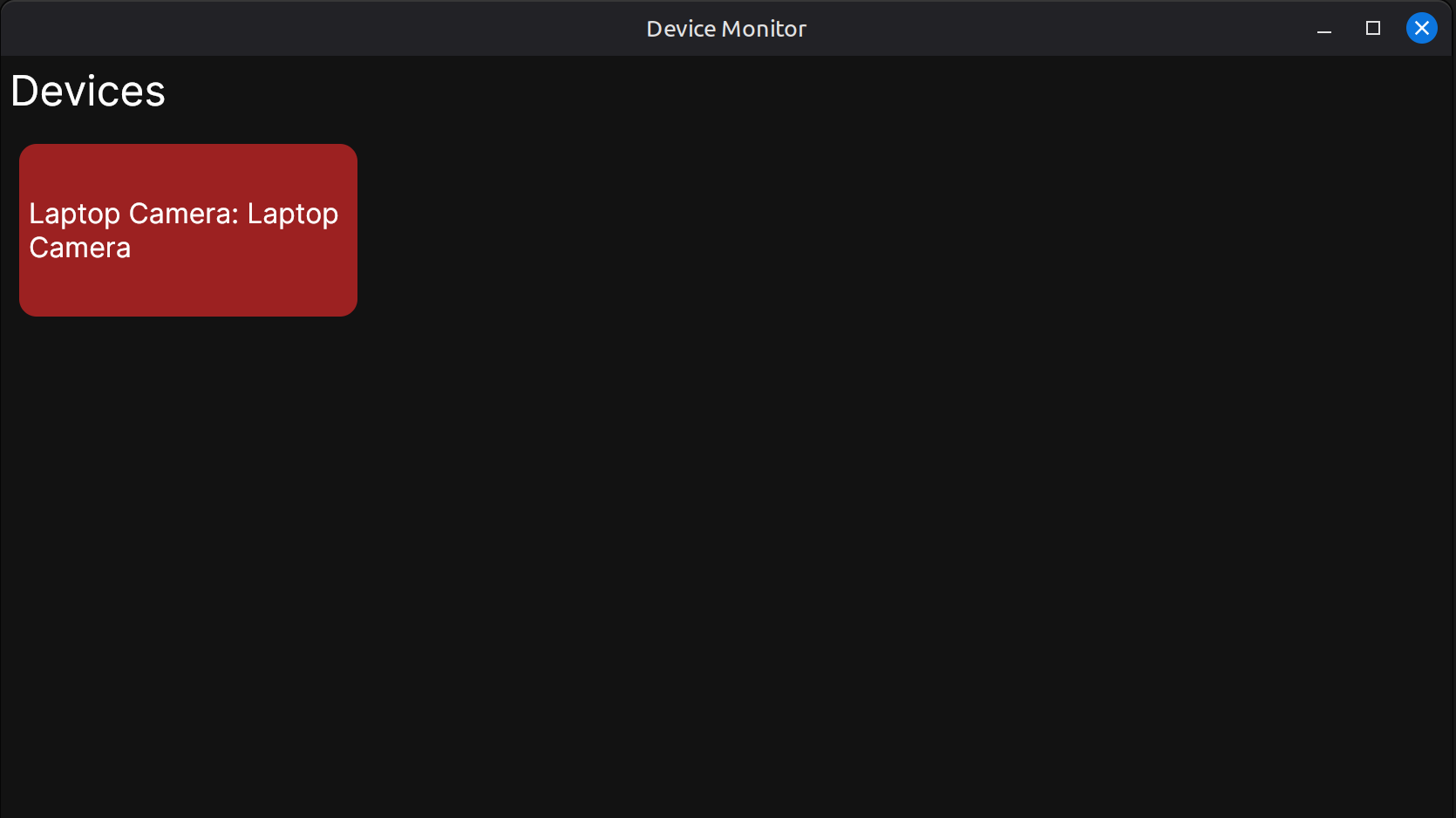
This is a nice little app that displays all my connected cameras and their states. But it is not turning on any physical lights yet. In the next post, we will design the protocol to communicate with a physical light.
If you would like to run the application, please see the repository for the Local Device Monitor App for all of the code!